Displays
B226.1 · Grade 9 Homeroom3 itemsPlaying: Morning Meeting
3F Corridor · East5 itemsPlaying: MS/US Lunch
B310 · Design Lab2 itemsPlaying: Student Work
Library · Entrance4 itemsOffline · TV powered off
 CI Vision
Teacher Guide · web app · every classroom & corridor screen
CI Vision puts your slides, notices, videos, countdowns and the daily lunch menu on the school's screens — from any browser — and keeps them playing on their own: through your lesson, through your meeting, and after you've closed your laptop and gone home.
Two minutes, no install. Do it now so the screen is ready the first time you need it.

This guide, on your phoneScan to open it — handy while you're standing at the TV.
Email songdo-technology@chadwickschool.org with the room numbers. Access is granted per person, so ask for any screen you look after — your room, a corridor, a whole floor. Usually added the same day.
Nothing here is new work. It is the things you already put on the screen — done once, from your desk, and then left to run.
You scheduled it once. It shows this week's version, because it follows the Slides deck you already edit.
The screen doesn't need it. Your class timer keeps counting down without it.
Added once from Templates → Lunch Menu Boards. It updates itself every week.
Your field-trip notice is rotating for the next class in your room.
Nothing to unplug. Next week's notice is already queued for Monday.
A screen looks frozen. You press Reload screen from your phone.
AirPlay mirroring is untouched — mirror whenever you want, and the screen returns to its rotation when you disconnect. And when you want to present live to several screens at once (an assembly, an announcement across a floor), that's Live Cast.
Three verbs. Everything in the app is one of these.
Make something in New Content, or start from a Template and change the words. It lands in My Content.
Choose which of your screens should show it — while creating, or later from the display's panel. One screen or twenty.
The screen picks it up within seconds and rotates through everything assigned to it — your notice, the schedule, the lunch menu, all sharing one wall.
Edit an item in My Content and every screen it plays on updates. Delete it and it disappears from every screen. There is one copy of each thing, and the screens all look at it.
Open New Content and pick a type. Most take under a minute.
In Slides, Share → "Anyone with the link" (Viewer), then paste the presentation's URL. Later edits to the deck reach the screen automatically — no re-uploading, ever. This is the one most teachers use most.
Upload a PDF — every page becomes a slide. Good for a handout, a poster or an exported deck.
Paste any video or Short. It plays start to finish in the rotation, then hands back to the next item.
Upload .mp4 / .mov or a picture straight from your computer or phone. Student work, a photo from the trip, a poster you made.
Text on a designed board — fonts, colours, photos, layout. For anything you'd otherwise print and tape to the door.
Count down to a moment — assembly start, clean-up time, test end. Big, readable from the back, and it takes itself off when it hits zero.
Upcoming events, entered by hand — or synced from Google Calendar: in Google Calendar open Settings → your calendar → Integrate calendar, copy the address in iCal format, and paste it into the Calendar's feed field. Events then stay up to date on their own.
Google Slides for anything you'll keep editing. Announcement or a Template for a notice. Video or Image for student work. Everything else is a special case.
Screens face students, families and visitors, and anyone passing the room can read them. Keep to school-appropriate content, check names and photo permissions, and remember your name shows on the item for colleagues who share the screen.
Edit there and every screen it plays on updates; delete it and it comes off every screen. Group items into folders to keep the list tidy — "Grade 9", "Clubs", "This week".
The fastest way to a good-looking board is to not design one.
Ready-made school designs — welcome boards, event notices, club posters, schedules — already in Chadwick colours and type. Pick one, change the words, publish. It becomes a normal item in My Content that you can schedule and assign like anything else.
Welcome (Dolphin Animation) is the animated board you have seen on the screens — the waves, the jumping dolphin, the core-values band. It is a template now, so the words are yours: headline, the line under it, and the size and position of both.
Under Templates → Lunch Menu Boards are two live boards: MS / US Lunch and VS & PK/K Lunch. Press + Add to My Content, assign it to your screen, and you're done — permanently.
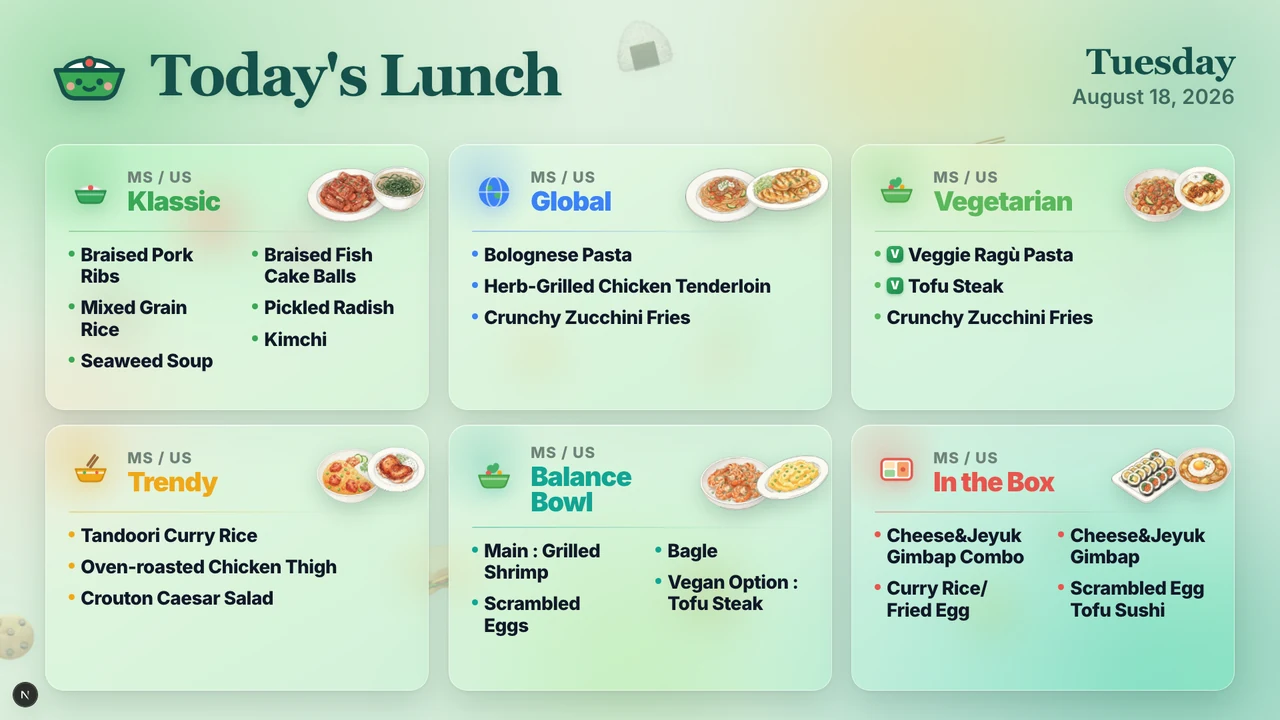
It always shows today, says so on a holiday, and every classroom screen can carry it alongside your own items — the rotation simply includes it.
Any item can be limited to when it should appear — set it while creating, or later when editing. This is the part that lets you stop thinking about the screen.
Plays whenever it is assigned. The default — for a standing notice or the lunch board.
From one date to another — the week of an event. It appears on the first day and takes itself down after the last. You don't come back to remove it.
Chosen weekdays and hours — Mon–Fri, 7:50–8:30 for the morning deck; Wed 15:00–16:00 for the club notice. Every week, on its own.
Outside its window the item simply sits out of the rotation. In the display's panel it is marked Scheduled, with its window shown — so you can always see why something isn't up right now.
Click any screen in Displays to open its panel. This is where you look after a screen without going to it.
Shows exactly what the TV is playing at this moment. Check from your desk, your phone, your kitchen.
The screen's playlist. Drag to reorder, Play Now to jump to an item, × to take it off this screen (it stays in My Content).
Put any of your existing items onto this screen — the same notice on a second room in two clicks.
Remotely restarts the screen if it ever freezes or looks wrong. It comes back within a minute — no need to visit the room.
Arrange your screens into groups that suit you — "My 3rd floor", "Grade 9 rooms". Your arrangement is personal; it changes nothing for anyone else.
The dot next to each screen. Offline usually means the TV is powered off or lost network — not something you did.
Mirroring puts your laptop on one TV. Live Cast puts it on every screen you choose, at the same time, from where you're standing — the whole floor, every classroom in a grade, the corridor and the lobby together. For assemblies, announcements and events.
It's switched on per person, since a cast takes over real screens. If you'll need it — assemblies, grade-level announcements — email the Technology Office and we'll enable it for you.
For a single screen in your own room, AirPlay mirroring is still the quickest thing, and it works exactly as before.
Everything above happens in your browser. The only thing you ever do at the television is make sure it is showing CI Vision — and most of the time it already is.
In Displays, press + Set up a new TV, type the code from the screen, choose which of your rooms it is in, and press Pair this TV. The screen starts playing within a minute and never asks again.
If your room isn't in the list, ask the Technology Office to add you to it.
Rooms are registered by the Technology Office and appear in your Displays list. Pairing is the only thing you might do at a TV — and only for a brand-new one. If a room you use is not in that list at all, it is an access request — see Get set up.
| What you see | What to do |
|---|---|
| A screen you use isn't listed | Email the Technology Office with the room number — access is granted per person, usually the same day. |
| New item isn't on the TV yet | It may still be preparing (it joins when ready), or it's outside its schedule window — check the Scheduled badge in the display's panel. |
| Screen is frozen or blank | Open the display's panel and press Reload screen. If it stays offline, check the TV's power and network. |
| Someone is mirroring over the signage | Normal — teachers can AirPlay to the TV. The signage returns when they disconnect. |
| Slides deck shows old content | Google Slides edits sync on their own within about 30 minutes. To push sooner, open the item in My Content and save it again. |
| Live Cast isn't in my sidebar | It's enabled per person. Ask the Technology Office and we'll switch it on for you. |
| Lunch board says "No lunch menu published yet" | The cafeteria hasn't posted that day's menu yet. Nothing to do on your side — it appears as soon as they publish. |
| The TV is on the Apple TV home screen | Scroll to the bottom of the app list and open CI Vision. It reconnects by itself. |
| The TV is showing a 6-character code | It's a new TV. In Displays → + Set up a new TV, type the code and pick the room. Takes ten seconds. |
| "+ Set up a new TV" isn't there | It only appears when one of your rooms is still waiting for a TV. If a room you use is missing entirely, ask the Technology Office to add you to it. |
| Do I have to do anything for AirPlay? | No. Mirroring works exactly as it always has, and it doesn't touch what you've set up in CI Vision. |
| Something else | Ask the CI Hub AI Support tab, or email songdo-technology@chadwickschool.org. |